
Define own error message subcategory: - Your own subcategories for courier errors
Overview
Every failed order now carries two extra fields, Category and Subcategory, that tell you at a glance why the order failed and who needs to act. The original error message is unchanged; the two fields are added next to it.
You will find them in:
- API error responses for order creation (single order, multiple orders and the v2 shipments endpoint), as
categoryCodeandsubcategoryCode. - The Failed requests screen in the Innoship portal, where you can filter failed orders by category and subcategory.
Use them to route errors to the correct team, build reports on why orders fail, or trigger automatic handling in your own systems.
{
  "Errors": [
    {
      "Message": "An Order with Reference: (389012644) already exists. Awb: [BOKM10013531]",
      "Details": [],
      "CategoryCode": "VALIDATIONS",
      "SubcategoryCode": "BUSINESS_VALIDATION"
    }
  ],
  "CorrelationId": "f6f8c17dedb01f1274457412c388718f"
}
How to read the fields
Category tells you the area of the problem and who usually fixes it. Subcategory names the specific cause inside that area.
There are 6 categories:
| Category | What went wrong | Who usually acts |
|---|---|---|
| VALIDATIONS | The order data sent is missing, malformed or breaks a rule | You: correct the order and send it again |
| CONFIGURATIONS | Your account, courier or rule settings in Innoship prevent the order | You (settings), or Innoship support |
| COURIER_RESTRICTIONS | The courier does not accept this kind of shipment or destination | You: choose another courier or service, or change the shipment |
| PRICING | The shipping price could not be calculated | You (price list), or Innoship support |
| COURIER_ERROR | The courier's system rejected the order or did not answer | You, using the courier's message; retry if temporary |
| INTERNAL | Something failed on the Innoship side | Retry; if it persists, contact Innoship support |
Categories and subcategories
Each category below lists every subcategory it can contain, what it means and what to do about it.
VALIDATIONS
The order data has a problem. Correct it and send the order again.
| Subcategory | What it means | What to do |
|---|---|---|
| REQUEST_VALIDATION | A required field is missing or a value has the wrong format. Examples: postal code missing, shipment date in the past. | Fix the fields named in the error. |
| BUSINESS_VALIDATION | The data is complete but breaks a rule. Examples: an order with the same reference already exists, invalid pickup location, invalid attachments, customs or consolidation data. | Read the message; for a duplicate, check the existing order. |
| ADDRESS_VALIDATION | The address could not be validated. Examples: postal code does not exist, locality not found, invalid phone or email, incomplete address. | Correct the address. |
CONFIGURATIONS
Settings in Innoship prevent the order. Most can be fixed in your account settings.
| Subcategory | What it means | What to do |
|---|---|---|
| CLIENT_CONFIGURATIONS | An account setting is missing or wrong. Examples: package type mapping, missing price group or price group currency, service template options, delivery days settings, overridden credentials. | Review the account setting named in the message. |
| COURIER_CONFIGURATIONS | The courier setup does not allow the order. Examples: no couriers configured on the location, forced courier inactive, courier service disabled, courier credentials rejected by the courier. | Check the courier configuration and credentials. |
| BUSINESS_RULES | One of your rules excluded the courier. Examples: a courier selection rule, another courier was forced, same courier for the same address. | Review your rules if the exclusion was not intended. |
| CLIENT_RESTRICTIONS | The order exceeds a limit you set for the courier: weight, number of parcels, dimensions, cash on delivery, declared value, cut-off time or counters. | Adjust the order or the restriction. |
| BARCODE_GENERATION | The barcode for the shipment could not be generated because of the barcode settings. | Contact Innoship support. |
COURIER_RESTRICTIONS
The courier does not accept this shipment. Choose another courier or service, or change the shipment.
| Subcategory | What it means |
|---|---|
| COURIER_RESTRICTION_GENERIC | A limit of the courier or its service. Examples: multiple parcels not supported, offline orders not supported, barcodes required, locality not accepted for eMAG orders. |
| INSURANCE | The courier does not accept the requested insurance. |
| COURIER_COVERAGE | The courier does not serve the address. Examples: locality or region not covered, pickup not supported in the country, delivery to a fixed location (locker, pickup point) not supported. |
PRICING
The shipping price could not be calculated. Check the price list for the courier and service, or contact Innoship support.
| Subcategory | What it means |
|---|---|
| PRICE_VALUES_MISSING | The price list has no values for this shipment. |
| PRICE_ZERO | The calculated courier price is 0. |
| PRICE_ENGINE_ERROR | Innoship could not calculate the price for the selected courier. |
| PRICE_CALCULATION_FAILED | Any other pricing failure, including errors from the courier's price service. |
COURIER_ERROR
The courier's system rejected the order or did not answer. The error message contains the courier's own text. This is the only category where you can add your own subcategories (see the next section).
| Subcategory | What it means | What to do |
|---|---|---|
| COURIER_API_ERROR | The courier returned an error, did not answer in time, or returned no AWB. Also used when several couriers were tried and all failed. | Read the courier's message; retry if the courier was unavailable. |
| NONE_ELIGIBLE | None of your couriers could take this order. | Check the reason for each courier in the error details. |
| Your own codes | A subcategory you defined, for example WRONG_COUNTY. | As agreed in your team. |
INTERNAL
Something failed on the Innoship side. Retry the order; if it keeps failing, contact Innoship support and include the correlation ID from the response.
| Subcategory | What it means |
|---|---|
| SAVE_FAILED | The order was accepted but could not be saved. |
| MAPPING_FAILED | The request could not be processed at the start. |
| WORKER_FAILURE | An internal processing service failed. |
| UNHANDLED | An unexpected error that fits no other subcategory. |
Your own subcategories for courier errors
Courier errors vary a lot between couriers, so you can split COURIER_ERROR into your own subcategories. A rule looks for a text in the courier's error message and, when it is found, returns your subcategory code instead of the default one.
Example: a rule with the text "Invalid county" and the code WRONG_COUNTY. A failed order whose courier message contains "Invalid county" returns COURIER_ERROR / WRONG_COUNTY.
To set up rules:
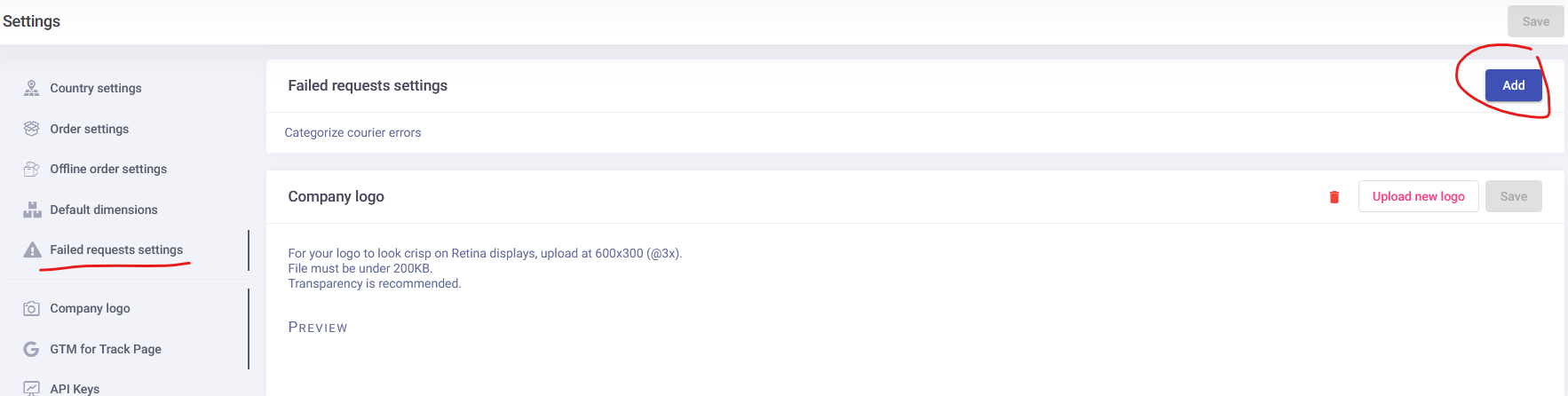
- In the Innoship portal, open the Connect => Settings page and find the Failed requests settings panel.
- Click Add and fill in the subcategory name, the subcategory code and the text to look for.
- Choose how the text is matched: Contains (plain text, case does not matter, at least 3 characters) or Regex (a pattern, for advanced users).
- Click Save. The rule applies to new failed orders right away.
How rules behave:
- Rules are checked in the order they were created; the first one that matches wins.
- Rules apply to all couriers and only to the COURIER_ERROR category.
- Each code can be used once and cannot be one of the Innoship codes listed above.
- To group several texts under one code, use a single Regex rule, for example
dimensions exceeded|size too big. - API responses return only the code. The portal shows your subcategories as "Name (CODE)".
- Changing or deleting a rule does not change failed orders recorded before. If a rule is deleted, its past failed orders show "rule deleted".
Good to know
- Failed orders recorded before this feature was released have no category or subcategory.
- A request that cannot be read at all (malformed JSON) is rejected without a category.
- v2 shipments API:
categoryCodeused to hold C001-C004. It now holds the category codes from this guide, andcategoryholds the same value. Update any integration that checks the old C00x values. - The new fields are always included in error responses. If your integration rejects unknown fields, allow
categoryCodeandsubcategoryCode.